
As the cybersecurity landscape evolves, Endpoint Detection and Response (EDR) solutions have become critical in protecting endpoints from evolving threats. However, a new tool—EDR Silencer—is undermining these defenses by disabling or bypassing EDR systems, posing a significant challenge for organizations. This blog delves into the technical workings of EDR Silencer, its impact on endpoint security, and practical detection and defense strategies.
What is EDR Silencer?
EDR Silencer is a sophisticated tool used by attackers to evade detection by endpoint security solutions. It specifically targets EDR processes running on endpoints, such as MsMpEng.exe (Windows Defender) or CETASvc.exe (Trend Micro), and uses Windows Filtering Platform (WFP) to inject filters into these processes. These filters block the communication of the EDR agents, rendering them ineffective in detecting or responding to malicious activities. The primary goal is to neutralize the EDR’s monitoring capabilities, enabling threat actors to move freely on the network without triggering alerts.
The tool operates by interacting with the IPv4 and IPv6 network layers, creating a stealthy channel for malicious activity to proceed unnoticed. Additionally, Windows Firewall is commonly manipulated or used to block any communication between the endpoint and the EDR servers, further hindering detection.
How EDR Silencer Works
- EDR Process Detection: EDR Silencer identifies running EDR processes on an endpoint.
- Filter Injection: It injects WFP filters into these EDR processes, affecting both IPv4 and IPv6 layers, blocking communication and evading detection.
- Windows Firewall Manipulation: The tool leverages Windows Firewall to block inbound or outbound communication between the EDR agent and its server, preventing the agent from sending or receiving critical security updates and alerts.
By disabling the core function of EDR solutions—real-time monitoring—attackers can exploit the system without detection, increasing the likelihood of successful cyberattacks.
Detection Techniques and Practical Defense
Given the growing use of EDR Silencers, it’s crucial for organizations to implement effective detection and defense strategies. Here’s how to detect and defend against these tools:
WEP Filter Detection
Event ID 5157 (F) logs instances when the Windows Filtering Platform (WFP) blocks a network connection. This event is useful for detecting blocked attempts to communicate with an EDR server. The event is not logged by default audit policy, manually enable auditing for this type of activity.
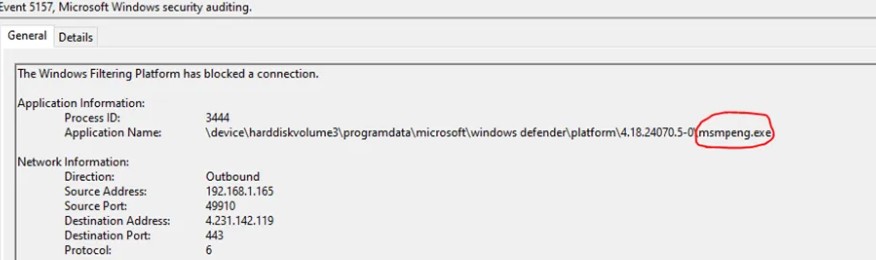
To monitor and detect blocked connections to EDR servers, configure detection rules based with the name of the EDR process that you are using.
Key Fields for Monitoring:
- Direction: Indicates whether the connection is Inbound or Outbound.
- Source Address: The originating IP address of the connection.
- Destination Address: The destination IP address, such as an EDR server.
- Destination Port: The port number of the destination system.
- Application Name: The EDR process that you are using (e.g.,
msmpeng.exe).
Event ID 5447 logs changes to the Windows Filtering Platform (WFP) filters, which are critical for network traffic filtering in Windows. It typically generates during Group Policy update procedures. This event is useful for detecting modifications to filters that could impact EDR operations.
To monitor and detect relevant changes in your environment, configure detection rules based on the fields below. Focus on changes where the Change Information is Add, and review the Filter details.
Key Fields for Monitoring:
- Change Information: Indicates if a filter was Deleted or Added.
- Filter Information:
- Name: The name of the filter being modified.
- Persistent: Indicates if the filter is persistent or not.
- Layer Information: The layer name where the filter applies (e.g., “Inbound Transport”).
- Additional Information: Provides the Filter Action (e.g., Allow, Block).
Event ID 4950 (S) logs changes to Windows Firewall settings, which is crucial for monitoring any modifications that could impact network security, including changes to outbound traffic rules that might affect EDR communication.
To detect critical changes to Windows Firewall settings, especially those that may block EDR communication:
- ProfileChanged: Focus on changes to the Domain profile, as this typically affects corporate network settings.
- SettingType: Look for changes in the Default Outbound Action setting.
- SettingValue: Monitor changes where the SettingValue is Block, which may indicate that outbound traffic is being blocked.
Key Fields for Monitoring:
- ProfileChanged: Indicates the firewall profile that was modified (e.g., Domain, Private, Public).
- SettingType: Specifies the type of setting changed (e.g., Default Outbound Action).
- SettingValue: Shows the new value of the setting (e.g., Block or Allow).
Conclusion
To effectively monitor changes to Windows Firewall and WFP, it’s essential to enable auditing, use a SIEM system for real-time alerts, configure your EDR to track rule changes, and leverage PowerShell or Sysmon for continuous monitoring. By doing so, you can better detect and respond to attempts to manipulate or disable endpoint security solutions, including EDR silencing activities.